First of all, I want to say that not every photograph can be used to create a bas-relief. Good results can be achieved with photographs that themselves show something similar to a bas-relief, for example, a human face, a sculpture, or a photograph of a bas-relief. In addition to photographs of three-dimensional objects, a bas-relief can also be created from images of flat shapes, but such images are processed using a special technique called "Pillows".
Other cases are not so easy to process, but we are working on improving the algorithm, and I hope we will reach a level where a bas-relief can be created from almost any photograph.
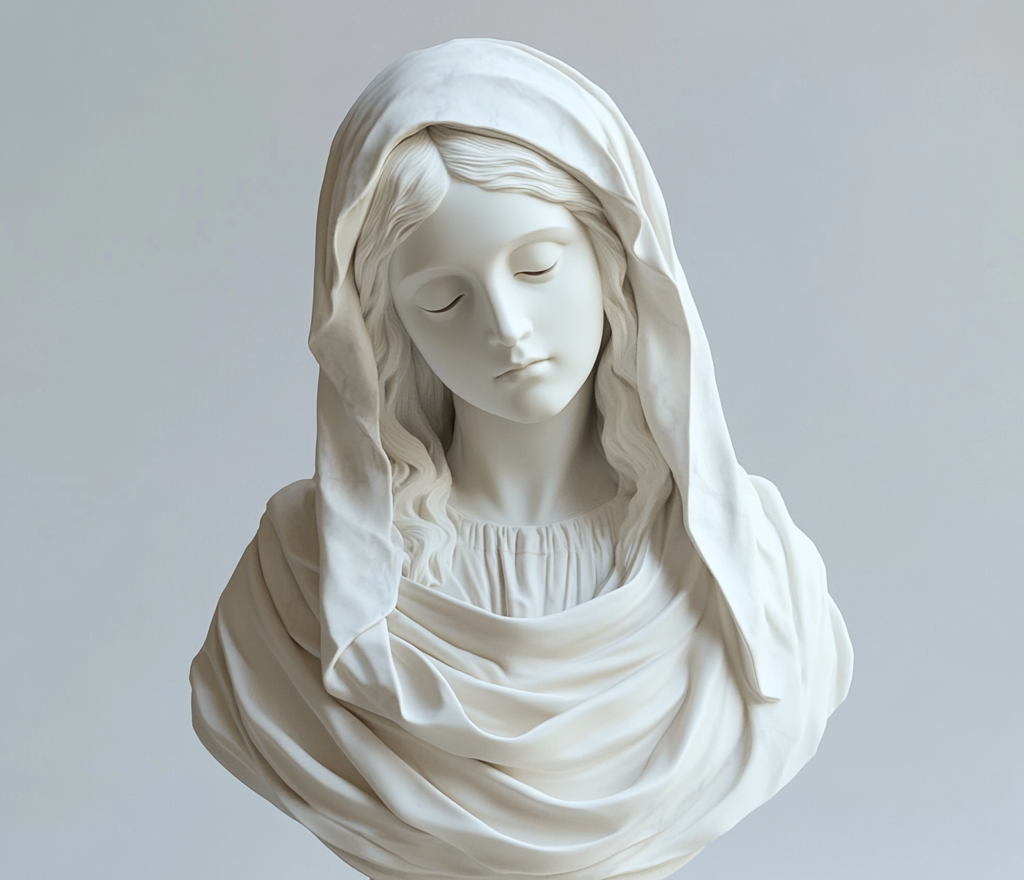
In this article, we will look at an example of creating a bas-relief from a photograph of a sculpture:
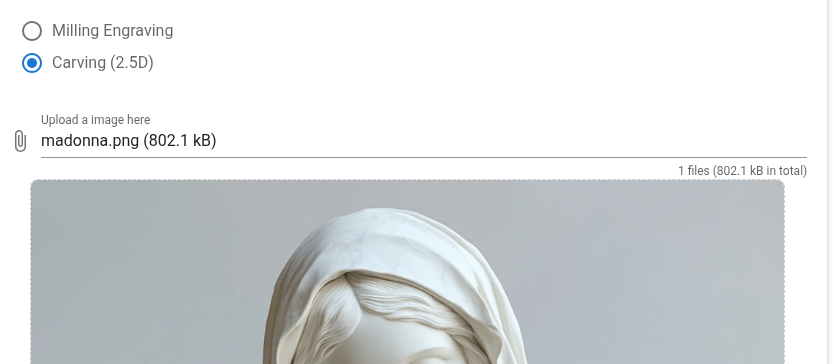
1. To get started, it is necessary to select the Carving (2.5D) milling type and upload a photograph to the website:
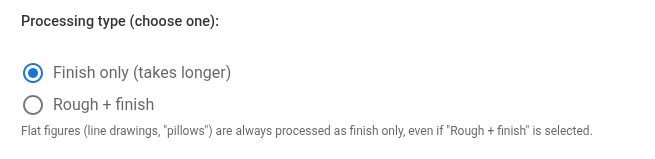
2. This selection determines whether milling will be performed in two stages or in one stage.
"Finish only" means machining with a single tool in one setup, while "Rough + finish" means machining with different tools. For "Rough + finish", two G-code files are generated: one file for roughing and another for finishing.
Two-stage milling involves roughing first, leaving a 0.5 mm allowance, followed by finishing to remove the remaining 0.5 mm. This approach assumes that the tool will be changed after roughing, although a tool change is not mandatory.
Single-stage milling is performed with the same tool throughout the entire process until the final dimensions are reached.
3. "Workpiece Thickness" specifies the height of the workpiece.
4. "Relief height" specifies the height of the bas-relief.
5. "Safe height Z" specifies the height at which the tool moves above the workpiece during non-cutting movements. It must be set higher than the workpiece thickness by several millimeters to avoid collisions between the tool and the workpiece.
6. "Platform cut" determines how much the bas-relief protrudes above its "base". The lower this value, the more the relief protrudes above the base. The higher this value, the lower the bas-relief becomes, sinking into its base.
6.1. In this image, you can see the bas-relief with "Platform cut" set to zero:
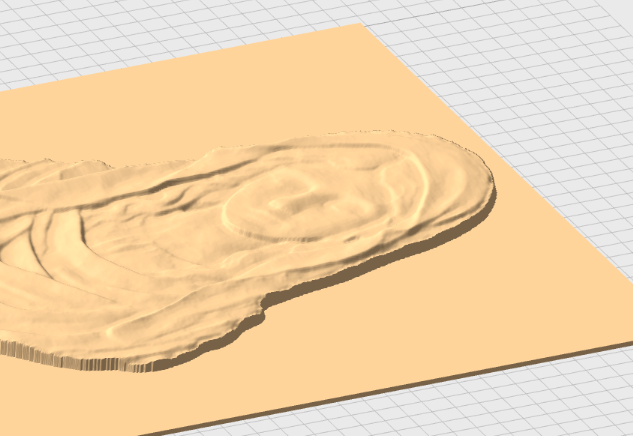
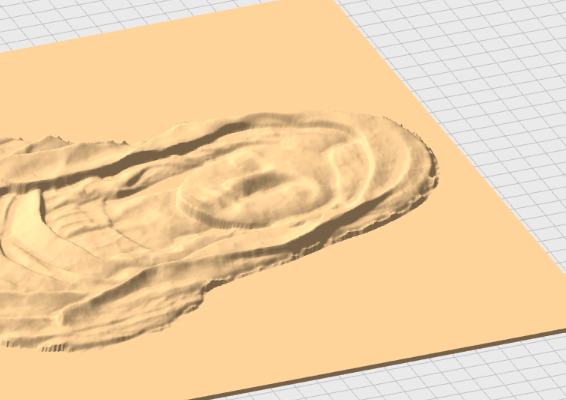
6.2. In this image, "Platform cut" is set to 50 units, and you can see that the bas-relief has partially "sunk" into its base.
7. "Cutting depth per step" specifies the depth of cut per pass.
8. "Horizontal step when moving in a serpentine pattern (default 0.3 mm)" specifies the distance the tool moves along the workpiece when milling in a serpentine pattern.
9. "Tool type" specifies the type of milling cutter.
10. "Tool diameter" specifies the diameter of the milling cutter.
11. "Type of processing (convex/concave)" determines whether milling will produce a convex or concave image (mold).
12. "Max Size (in pixel)" allows you to reduce the image size. Set the maximum size in pixels, and the largest side of the image will be reduced to this value, while the smaller side will be reduced proportionally.
13. "Tolerance (default 0.2 mm)" specifies the distance between approximation points.
14. "Rapid Speed" specifies the speed of rapid tool movements.
15. "Cutting Speed" specifies the cutting speed.
16. "Coordinate Z" specifies the height to which the cutting tool is raised.
17. "Passes" specifies the number of passes.
18. "Pass Depth" specifies how deep the tool cuts during one pass.
19. "Header" specifies the code that will be inserted at the beginning of the program.
20. "End" specifies the code that will be inserted at the end of the program.